THE SHORT ANSWER
For the Windows app shown here, start with Smarters IPTV by SmartersPlayer LLC. Open the player, use its displayed device details on the publisher’s Manage Playlists page, add either your full M3U link or separate XC account details, then reload the player. The app activation and your Apollo viewing plan are separate.
Start with the exact Windows app.
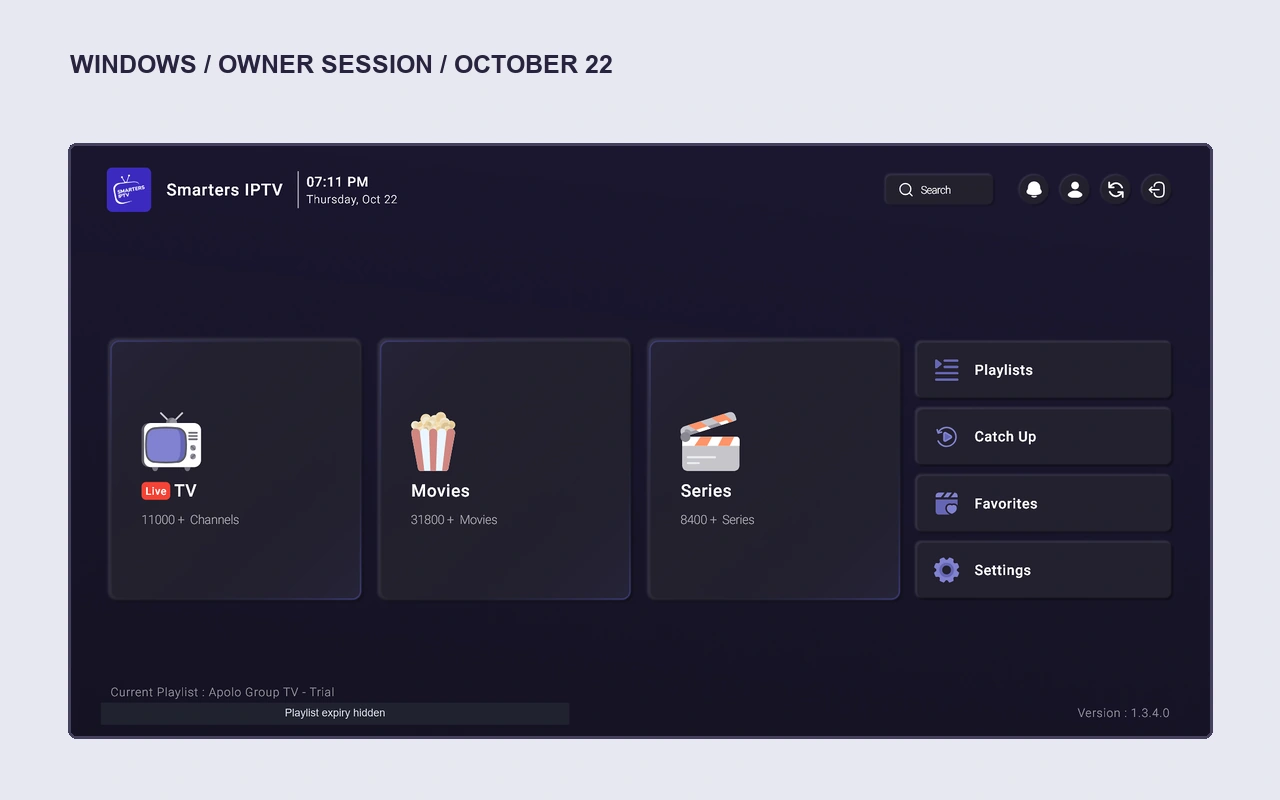
Searching for “Smarters” can return several similarly named products. This walkthrough is for Smarters IPTV by SmartersPlayer LLC, the app visible in our October 22 Windows screenshots. It is not a claim that every app called Smarters, Smarters Pro or Smarters Player uses the same menus, developer or licence.
The publisher’s website links to the Microsoft Store listing with product ID 9P0XNF0JHWBV. We checked that listing on October 25: its name is Smarters IPTV, its publisher is SmartersPlayer LLC and it offers in-app purchases. Use that identity check before installing. An Android APK is not the Windows edition.
Our recorded Windows app version is 1.3.4.0. A current store build may look different. Follow its own labels and keep the version number available when asking for help. For other Windows players, use the Windows setup hub.
Gather the details that do different jobs.
You need the installed player, an internet connection and the source details supplied for your viewing account. Keep your activation email open privately. The player’s device identifiers connect a playlist to the app; they are not your subscription username and password.
| Detail | What it identifies | Where it belongs |
|---|---|---|
| App MAC and device key | This player/device installation | Publisher playlist-management sign-in. |
| Full M3U URL | Your account-specific viewing source | Add Playlist URL field, copied in full. |
| Host, username and password | Separate XC account fields | Add XC Playlist, in their matching fields. |
| Apollo order reference | Your request or order conversation | Support correspondence, not a player login field. |
Do not post these values in public screenshots. A playlist URL can include the same access details as a username/password login. If all you have is a payment receipt, app key or order reference, ask for the viewing-source details rather than guessing a server address.
Add M3U or XC through the matching route.
Open Manage Playlists on the publisher’s site and use the device details displayed by your installed app. Our existing capture shows two distinct actions: Add Playlist and Add XC Playlist. Pick the route that matches the details you received.
If you received one complete M3U link
- Choose Add Playlist and give the source a recognisable label.
- Paste the entire supplied link into the URL field. Keep its beginning, query parameters and ending intact.
- Review it against your activation email, then save the playlist.
- Return to the Windows player and reload the source. Allow its initial import to finish before checking the library.
A line wrapped across two lines in an email is still one URL. Remove accidental spaces introduced by copying; do not remove legitimate parameters to make the address look shorter. Our playlist-format guide explains the parts without exposing an account.
If you received separate XC details
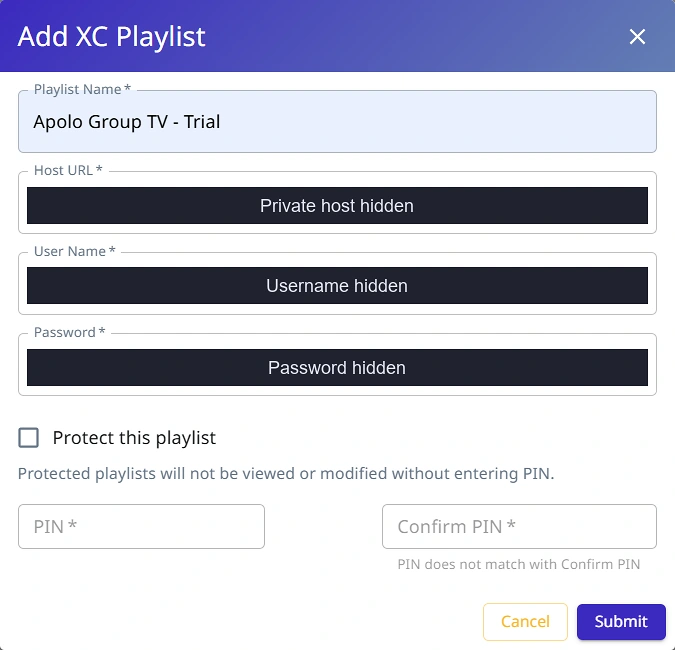
- Choose Add XC Playlist and enter a playlist name.
- Copy the supplied server address into Host URL, including its supplied protocol and port where applicable.
- Enter the username and password in their separate fields. Match case and characters exactly.
- Review, save, then reload the source in the Windows app.
The protection/PIN controls shown in the capture concern playlist management. They are separate from the source password. Keep any management PIN private and retain it if you choose to use that option.
Check playback, then check the guide.
Start with a representative live channel. Confirm that both picture and sound are present, then open a movie and a series episode included in your account. If one item fails, record that item and error before changing the whole source. Test with other streams stopped when using a one-screen plan.
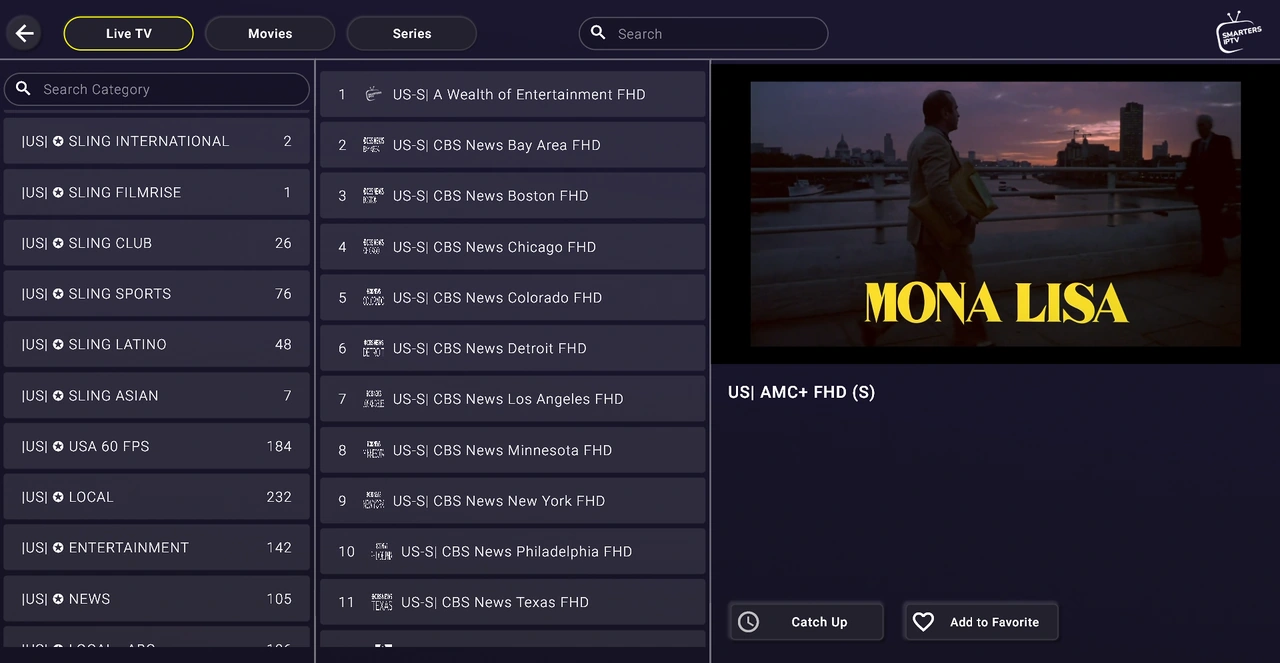
The owner reported that live TV, movies and series worked well in the October 22 Windows session, with good picture quality and no buffering noticed. The separately supplied XC setup received the same reported result. This is useful evidence for that session; it is not a measured bitrate test or a promise about every device, connection or future stream.
Next, check programme listings separately. A playing channel does not prove that its EPG loaded. For missing listings or shifted programme times, use the existing EPG source, channel-ID and time checks.
Keep player activation and Apollo access separate.
The publisher’s FAQ describes a seven-day player trial followed by paid device activation. The Microsoft listing also flags in-app purchases. Confirm the price and terms displayed for your exact Windows installation before paying. Activating a media player does not purchase Apollo channels or extend an Apollo term.
At this website, Apollo’s current one-screen, one-month viewing plan is $14.99 USD. Compare the full term and screen totals before choosing. One payment covers the selected term, with no automatic renewal. Payment instructions and subsequent manual activation are handled by email.
For the setup request, include “Smarters IPTV by SmartersPlayer LLC on Windows,” your app version and whether you need M3U or XC instructions. That is more useful than sending support a screenshot of a password.
Choose a focused next check.
| What you see | Check next |
|---|---|
| Device sign-in fails on the website | Match the app’s current device identifiers and exact publisher website. |
| The player opens but no catalogue loads | Confirm which playlist was selected, the input route and whether the import finished. |
| A catalogue loads but an item will not play | Check the item, exact error and simultaneous-stream allowance. |
| The trial or activation message remains | Identify whether it refers to the player licence or viewing account. |
| Video works but the schedule is blank | Use the separate EPG troubleshooting guide, keeping playback settings intact. |
Make one change at a time and keep a note of the result. If a store version or current publisher form differs from these dated screenshots, use the current version’s documented controls. Do not disable Windows protections or use an unrelated download mirror to imitate a tutorial.
Ready for your Windows setup request?
0 of 4 checks complete. These checks stay on this page; no account details are collected.
QUICK ANSWERS
Frequently asked questions
Is this IPTV Smarters Pro?
This guide covers the app visibly named Smarters IPTV, published by SmartersPlayer LLC. Similar names do not establish that apps share a publisher, licence or setup process.
Should I use Add Playlist or Add XC Playlist?
Use Add Playlist for the complete M3U source address. Use Add XC Playlist when your instructions provide a host, username and password separately.
Does paying for the player include an Apollo subscription?
No. Player activation and the viewing subscription are separate. Check both costs before paying.
Was this Windows setup actually used?
The owner supplied October 22 Windows 1.3.4.0 screenshots and reported successful playback with no buffering noticed, including the separately supplied XC setup. No new session is claimed here.
What details help with a setup problem?
Give the exact app, version, Windows device, input method, affected item and error. Keep passwords, private URLs, device keys and QR codes hidden.
Sources & review notes
- SmartersPlayer LLC: product identity and official store links
- Microsoft Store: exact Windows product and publisher
- Publisher FAQ: player trial, activation and separate viewing source
- Publisher playlist-management page
Publisher/store identity checked October 25, 2026. Interface screenshots and owner-reported results are from October 22 on Windows, version 1.3.4.0. Private fields are redacted. Third-party UI and trademarks remain their owners’ property. No affiliation or universal performance certification is implied.
If you are comparing a Tech Smarters player upgrade with viewing access, read the separate How to buy for a different Smarters app. It separates app purchases, provider access and login details.