INSTALLATION / Windows
Windows
made straightforward.
Real Windows screenshots. Three player routes. Your Apollo playlist, step by step.
Three players, ready for your next watch.
Our tester confirmed live TV, a movie and a series episode played with sound in IBO Player Pro, Smarters IPTV 1.3.4.0 and TvMate IPTV Pro 1.0.9.0. No buffering was noticed; TvMate also received a no-lag report. Both the supplied M3U and Xtream-style setups worked during these sessions.
- 01
Choose your Windows player
Use the exact edition shown below and check its developer’s current Windows requirements. Start with the website displayed inside the app. A separate player licence may be required; your Apollo plan supplies viewing access.
- 02
Match the login to your activation email
M3U: paste the complete supplied playlist URL into the playlist field. Xtream: enter the service host, username and password into their separate fields. The player’s device MAC and key identify that app installation; they are different from your Apollo viewing credentials.
- 03
Save, reload and start watching
Save the playlist in the matching management portal, return to the Windows app and choose Reload. Select the saved playlist if asked, let the catalogue load, then open Live TV, Movies or Series.
IBO Player Pro: M3U or Xtream.
Open the management website shown by IBO Player Pro and sign in with that installation’s device MAC and key. For an M3U URL, choose the playlist option. For separate connection details, open the XC/Xtream option and enter the host, username and password. Give the playlist a recognisable name, save and reload the app.
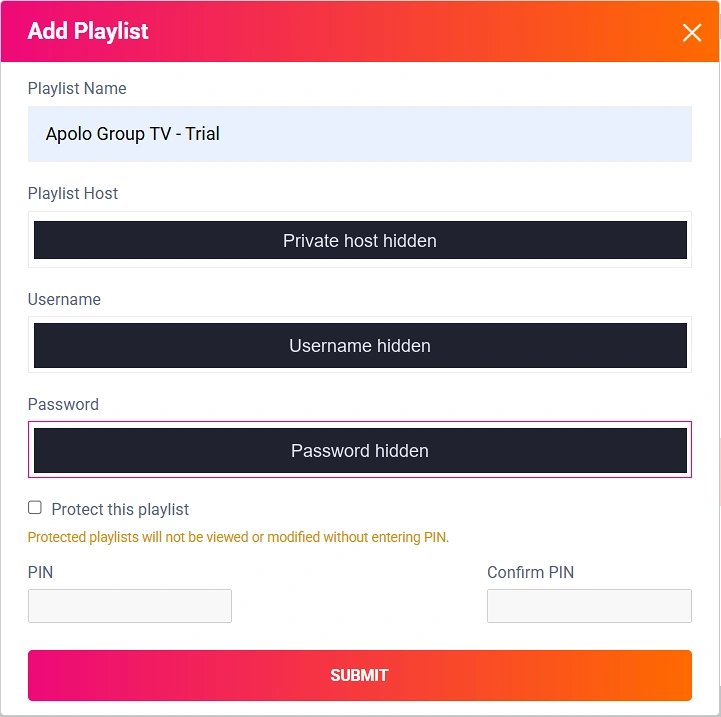
Smarters IPTV 1.3.4.0: add your playlist.
The Windows edition in our record displays smartersiptvplayer.com. Open the management website shown inside your app and use that installation’s MAC and device key. Choose Add Playlist for M3U or Add XC Playlist for separate Xtream details.

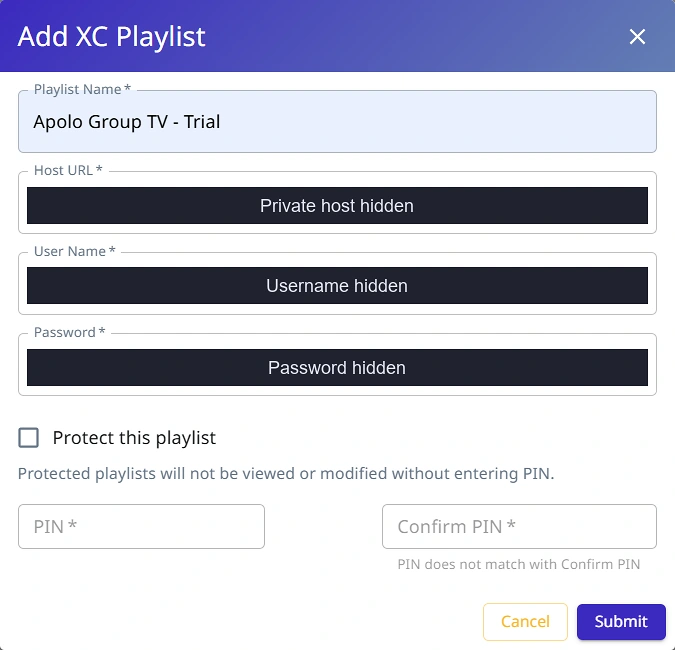
Submit the matching form, return to Smarters IPTV and reload. The home screen separates Live TV, Movies and Series. The tester described high-quality playback with no buffering noticed.
TvMate IPTV Pro 1.0.9.0: choose the matching format.
This Windows app displays tivimateiptvpro.com. It is distinct from the Android TV product called TiviMate. Use the management route displayed by the installed app, then choose Add M3U Link or Add Xtream Code.
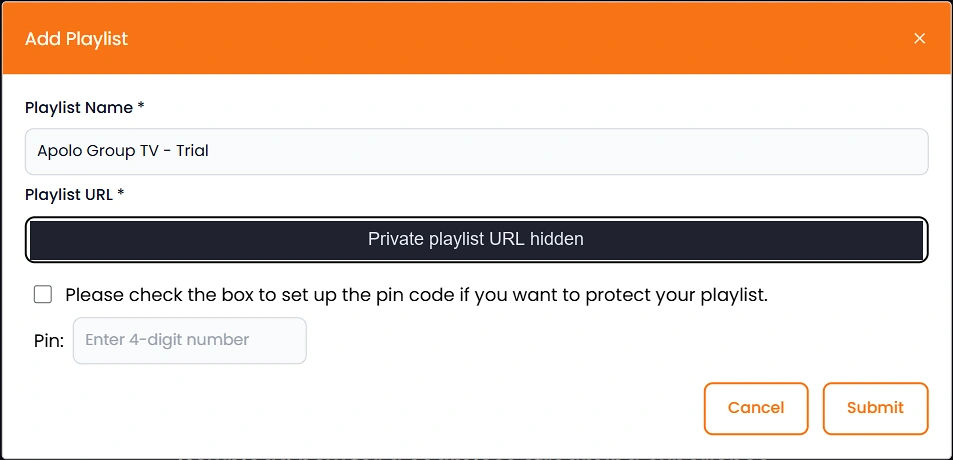

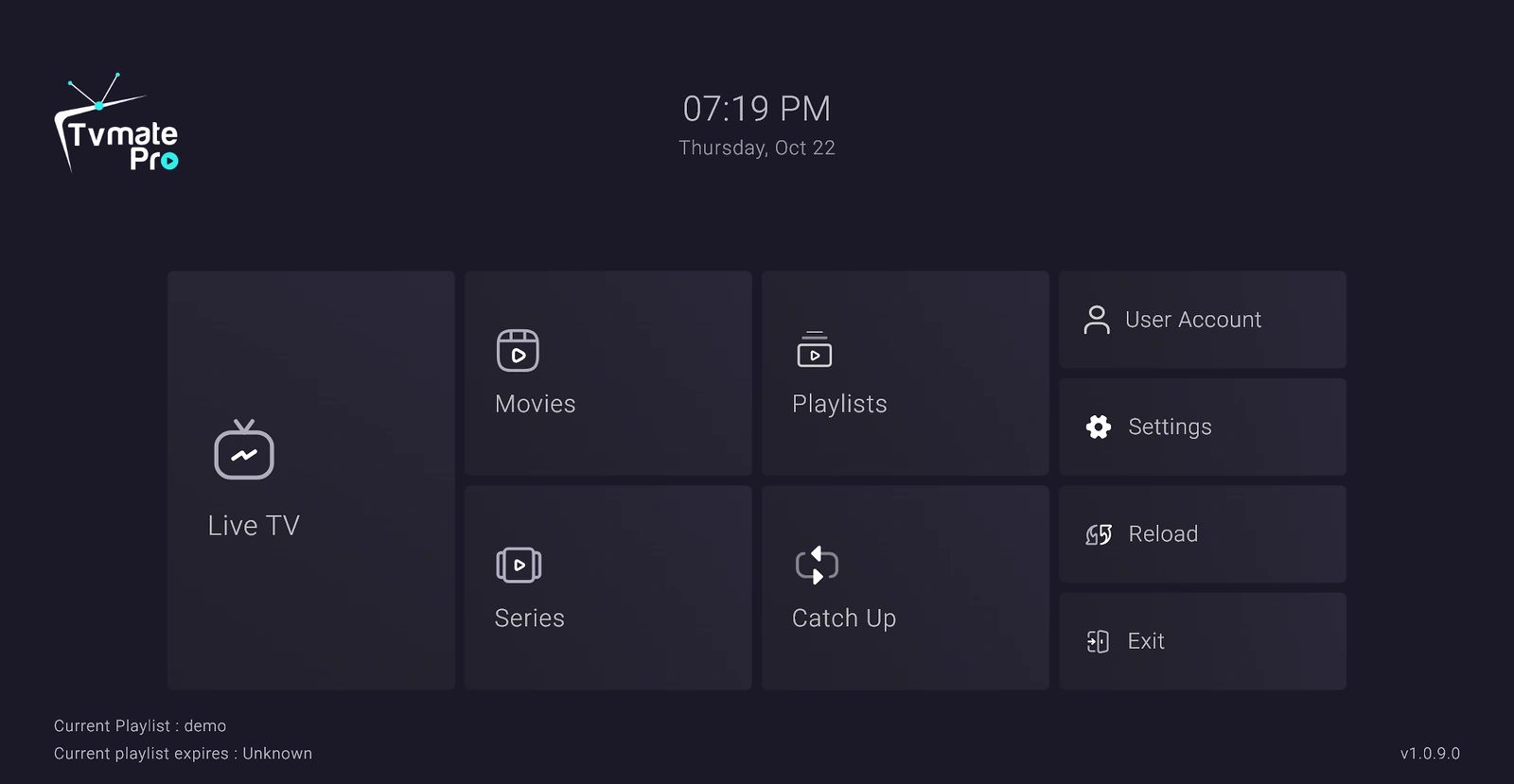
Return to the app, reload and open your saved playlist. Live TV, a movie and a series episode played with sound in the reported session, with no buffering or lag noticed.
Make your first viewing check.
Play a channel, a movie and an episode that matter to you. Check sound, picture and navigation on your normal connection. For help, send the exact app name, device model and error message to Apollo support.
The screenshots and feedback above come from October 22 Windows sessions. They document those successful sessions; the IBO app version for that date was not recorded. Use the app guide for the broader device and player overview.
Choose the viewing time that fits.
One-screen plans start at $14.99 for one month. Pay once for your chosen term, with no automatic renewal.
Need a hand?
Send your device model and the error message.
Understand the connection.
Need the basics first? Read how IPTV playlist links and account logins differ, or identify the right IPTV Stream Player edition before following another app’s instructions.
The exact Smarters workflow.
Follow the Smarters IPTV Windows guide for the SmartersPlayer LLC edition, the real XC fields and the dated owner-reported session. This is separate from similarly named apps.
Compare the wider player choices.
Searching specifically for TiviMate? Our TiviMate and Windows product comparison explains the similar names. Managing a TiviMate Premium account from a PC is a separate browser task.
See the IPTV player comparison for the difference between owner-reported Windows experience and documented alternatives on other platforms.
Keep the Windows setup notebook
Download a three-page reference with the exact app identities, a genuine redacted XC form and dated owner-reported playback observations. It contains no viewing credentials and does not claim a new hardware or playback test.
Download the Windows setup notebook (PDF, 615 KB)
For current app requirements, use the publisher website displayed inside your installed player. The Smarters IPTV publisher site and its linked Microsoft Store identity help distinguish the Windows edition from similarly named apps.