
HOW TO SET UP IBO PLAYER PRO
Use the management website shown inside your app. Sign in with your device’s MAC and key, choose Add Playlist, paste your M3U link and submit. Return to the app, select Reload, continue into the saved playlist and test a channel for picture and sound.
From the Apollo Group TV team. This guide explains a documented setup using our supplied trial playlist. IBO Player Pro is a separate third-party application.
Two things to have. Two different jobs.
IBO Player Pro is the player. Your TV provider supplies the playlist and viewing access. Installing or activating the player does not supply an Apollo subscription. Likewise, paying for a TV plan does not automatically buy the player’s licence.
Your own device
Open the installed app and keep its MAC address and device key private. Use the management website displayed by that exact application.
Your own viewing access
Have the complete M3U link from your provider, including its account details. You do not need to create or host a playlist file yourself.
Need viewing access? Choose an Apollo subscription for your screens and term. We email payment instructions after reviewing your request, then activate access manually after payment confirmation. If you prefer to check your device first, a free 24-hour, one-screen trial is available.
1. Find the device details inside the app.
On the starting screen, look for MAC Address, Device Key and the playlist-management website. The screen in our Windows session displayed iboproapp.com. Check your own screen rather than assuming every app with “IBO” in its name uses the same website.
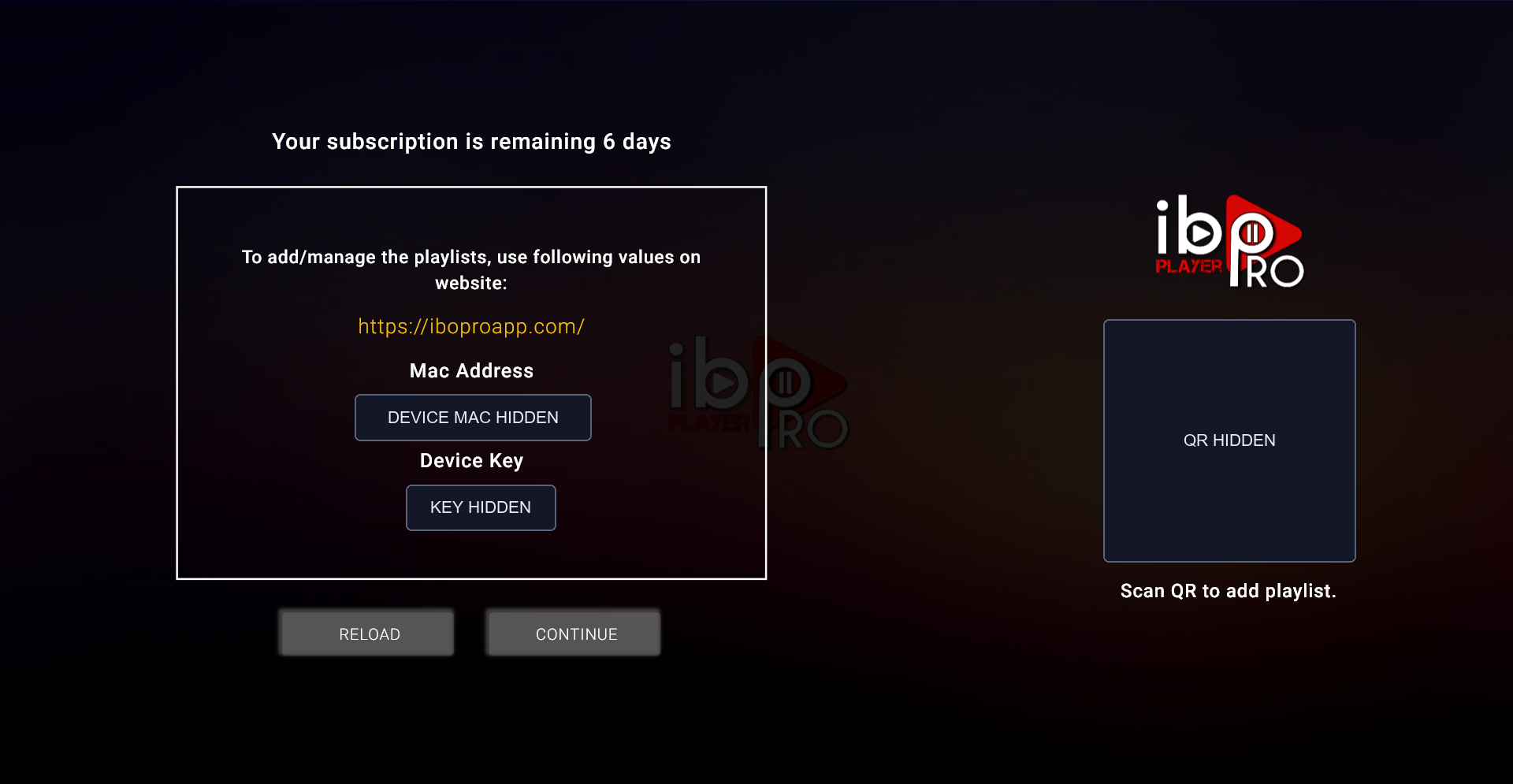
On the website shown by your app, open Manage Playlists. Enter the MAC address and device key exactly as that device displays them, then log in. These are the player’s device details, rather than your TV subscription username and password.
Use the app developer’s official download source or your device’s official store when installing or updating. This walkthrough starts with IBO Player Pro already installed; Windows version 2.0.6.0 was used for the documented session.
2. Add the M3U link once.
Choose Add Playlist. Give it a name you will recognize on the TV, such as “My Apollo playlist.” Paste your full provider link into Playlist URL and select Submit.

Paste the link as a single complete address. It may contain a username, password and several parameters after a question mark; removing part of it can stop it working. Keep the link private and do not use a public URL shortener or paste it into an online “playlist checker.”
The portal also offered Add XC Playlist. That is a different input route for separate server, username and password fields. For the M3U link in this walkthrough, we used Add Playlist. Follow the connection format your provider actually supplies.
After submitting, confirm the playlist name appears in the device’s saved playlist list. No paid player-licence activation was needed to add our playlist during the available player trial.
Prefer Xtream? Use the separate connection fields.
The October 22 IBO portal also accepted the supplied Xtream-style details. Open the XC/Xtream playlist option, name the playlist, then use Playlist Host, Username and Password for their matching values. Save, return to IBO Player Pro and reload.
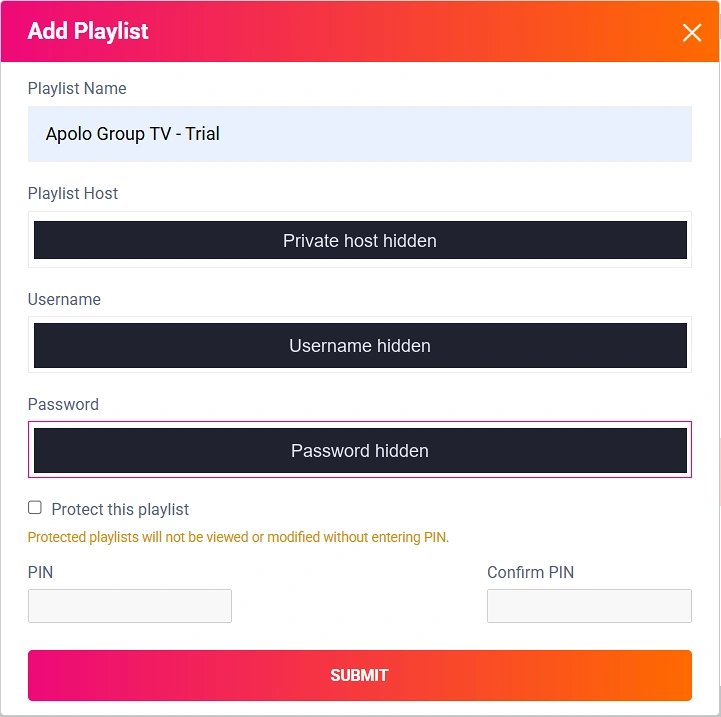
Your complete M3U URL belongs in the M3U form; the Xtream form uses its separate fields. Follow the option that matches your activation email.
3. Reload the app and open your playlist.
Return to IBO Player Pro. On the startup screen choose Reload, then Continue when available. Select the saved playlist if asked. Allow time for the catalogue to load before judging whether setup worked.
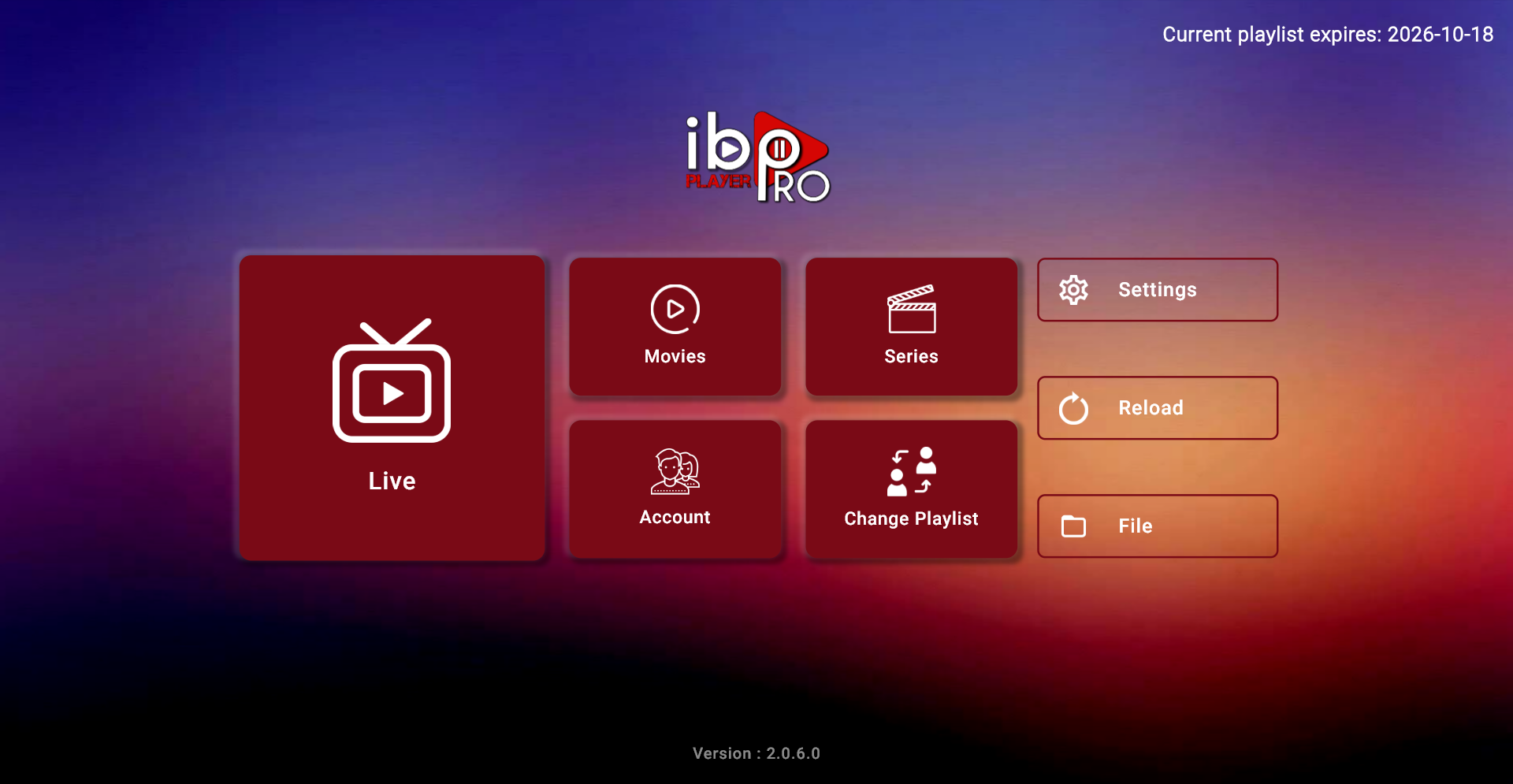
Once loaded, the home screen in our session showed Live, Movies and Series, plus Change Playlist and Reload. If a different saved playlist opens, use Change Playlist and select the intended name. Reload refreshes the app’s data; it does not renew an expired TV subscription.
4. Live TV, movies and series: play your first picks.
Open Live and choose a channel, then try a movie and a series episode. On October 22, the person running the Windows IBO Player Pro session confirmed all three played with sound, with no buffering noticed. The later supplied Xtream setup received the same positive feedback.

From a saved playlist to a working picture.
- Live, Movies and Series loaded in IBO Player Pro on Windows.
- The tester confirmed a live channel, a movie and an episode with sound.
- No buffering was noticed in the reported session, including the supplied Xtream setup.
The original October 18 M3U walkthrough used version 2.0.6.0. The version for the October 22 capture was not recorded. Catalogue labels describe the player’s listings; picture quality also depends on the selected stream and your setup.
Ready for more viewing time? Choose an Apollo paid plan by term and simultaneous screens. One payment covers your selected term, with no automatic renewal. Player licensing is separate.
Playlist not showing or not playing? Start here.
Match the symptom to the next useful check. Avoid reinstalling or deleting device data as your first step: a different device identifier can leave the playlist attached to the previous one.
The checks below stay available without JavaScript.
| Symptom | Check next |
|---|---|
| Playlist is missing | Confirm the name was saved for the MAC and key shown by this device. Reload, then check Change Playlist. |
| Library is empty | Check the complete URL was saved, choose the correct playlist and let it finish loading. Ask your provider to confirm the account is active. |
| “Expired” appears | Identify whether the message refers to the player licence or the viewing playlist. App activation and provider renewal solve different problems. |
| Picture but no sound | Check mute and output volume, then try a second channel. Note whether the problem affects one channel or all of them. |
| Buffering or failed channel | Stop other streams on a one-screen trial, check the connection and try a second channel. Tell support which channels fail and the exact app version. |
For Apollo setup help, email apologrouptv.support@gmail.com or contact the team with your device model, player version, error text and request reference. Send screenshots privately and hide credentials in anything you post publicly.
IBO Player Pro cost: what are you actually paying for?
There are two separate costs to check: the player developer’s current licence price, if required, and your provider’s viewing plan. Check the licence offer shown in your exact app or its verified device portal. We do not quote a universal player price because devices, versions and offers can differ.
In our session the device portal showed a player trial, while the app separately displayed the test playlist’s expiry. Buying one does not extend the other. Ask which access has expired before paying.
Apollo’s free trial gives 24 hours of viewing on one simultaneous screen after manual activation. Paid TV access is a single payment for the selected 1-, 3-, 6- or 12-month term, with no automatic renewal. See current total plan prices and the paid-plan refund conditions before purchase.
MAKE IT YOURS / APOLLO PLANS
Your screens. Your term. A clear total.
Choose your simultaneous screens and term. See the full upfront price, then request your paid plan. One payment covers the selected term.
No automatic renewal. 7-day money-back guarantee on paid plans. Requests and activation are handled manually.
IBO Pro setup questions, answered.
How do I add an M3U playlist to IBO Player Pro?
Open the management website displayed by your app, sign in with that device’s MAC and key, choose Add Playlist, enter a name and the complete M3U URL, and submit. Return to the app, reload and select the saved playlist.
Do I create a new TV account on the IBO website?
The device portal manages the player and its playlists. Your TV provider supplies viewing access. In this session, we signed in with the device MAC and key rather than creating a new TV-provider account.
Does IBO Player Pro include a TV subscription?
A player licence and a TV subscription are separate. The player needs your own viewing playlist; Apollo access is requested separately.
Should I choose Add Playlist or Add XC Playlist?
Use the M3U playlist option for a complete playlist URL. Use the XC/Xtream option for separate host, username and password fields. The October 22 supplied Xtream setup also worked successfully, according to the tester. Use the format in your activation email.
Why is my playlist not showing after I save it?
Check that you used the MAC and device key from the intended device and that the portal lists the saved name. Reload the app and check Change Playlist. If it remains missing, contact support with the app version and error text.
Will Reload renew an expired playlist?
No. Reload refreshes the player’s data. Viewing access must still be active with your provider, and any separate player licence must also be valid.
Does this guide work for IBO, IBO Pro and every Smart TV?
The original M3U steps document Windows IBO Player Pro 2.0.6.0; the October 22 update adds a later Windows Xtream form and playback feedback. App names, TV editions and menus can differ. Use the website displayed by your exact player and ask support about your device.
Can I try Apollo with IBO Pro before buying a plan?
Yes. Request the free 24-hour Apollo trial for one simultaneous screen and tell support your device and app. Viewing time begins at manual activation. No payment details or automatic paid upgrade are required; any separate player licence is not included.
Sources & test notes
Updated October 22, 2026. The original M3U steps and earlier screenshots come from the October 18 Windows IBO Player Pro 2.0.6.0 session. The October 22 captures and firsthand feedback add live, movie and episode playback with sound and no buffering noticed, including the supplied Xtream setup. The later app version and test duration were not recorded.
- IBO Player Pro website, displayed by the tested app.
- Apollo Windows installation guidance and device information.
- Current free-trial terms, paid plans and refund conditions.
Menu names, licensing and availability can change. Screenshots are genuine UI captures with desktop bars removed; private device identifiers are masked. They do not promise ongoing availability of any particular channel or title.
If you need to distinguish a separate server login from a complete playlist URL, the Xtream account-format guide maps the fields using our genuine redacted portal screen.